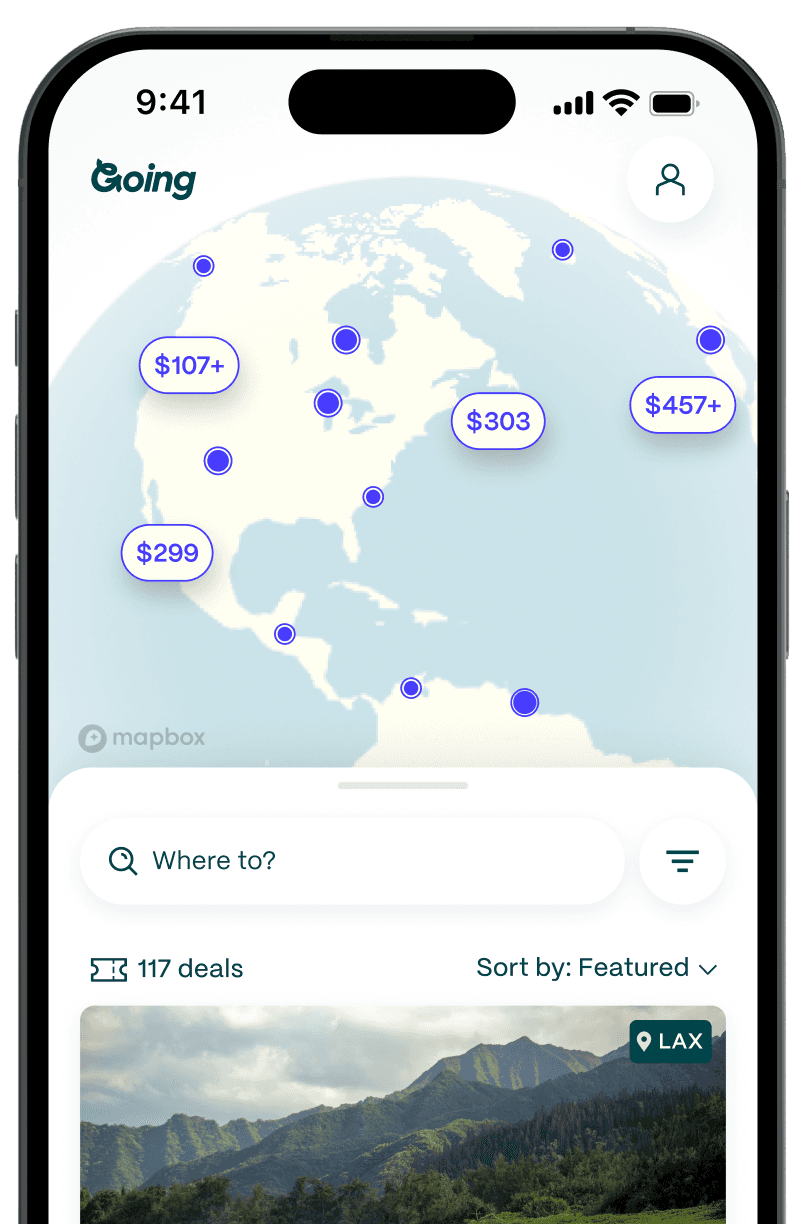
Google Flights Explore: The Map Trick for Cheap Flights



October 13, 2026
5 min read
There are two types of travel planners:
- "I have a destination in mind"
- "I want to find inspiration"
If you consider yourself traveler #2 for an upcoming trip, Google Flights Explore is your new best friend. Instead of forcing you to choose a destination first, Explore flips the script, showing you the cheapest places to fly from your chosen airport across a map of the world. It’s one of the most underrated ways to uncover cheap flights quickly, especially if your dates or destinations are flexible.
Here, we’ll walk through how to use the Explore map step by step, plus the pro tips frequent travelers rely on to squeeze the most value out of it.
| Note: While Google Flights Explore is available on mobile devices, the desktop version of Explore is significantly more powerful. It shows more destinations at once, has better filtering options, and offers smoother map navigation. We suggest using Google Flights Explore on desktop for the best experience. |
Why the “Explore” feature matters
Explore is built for how flexible travelers actually plan, not how traditional booking sites want them to plan. Many people don’t start with a specific destination or set of dates in mind. They start with: “I want to travel somewhere in March that won’t destroy my budget.”
The Explore map solves that. Instead of running separate searches for Paris, Lisbon, Reykjavík, and Copenhagen, the Explore map shows you all of them at once—along with dozens of places you might not have considered. It also helps uncover price patterns you’d never spot manually, like a random Tuesday fare drop or shoulder-season sweet spot.
Think of it as a global deal map that updates in real time.

Inside the Explore map: What you're actually looking at
Step 1: Enter your departure city
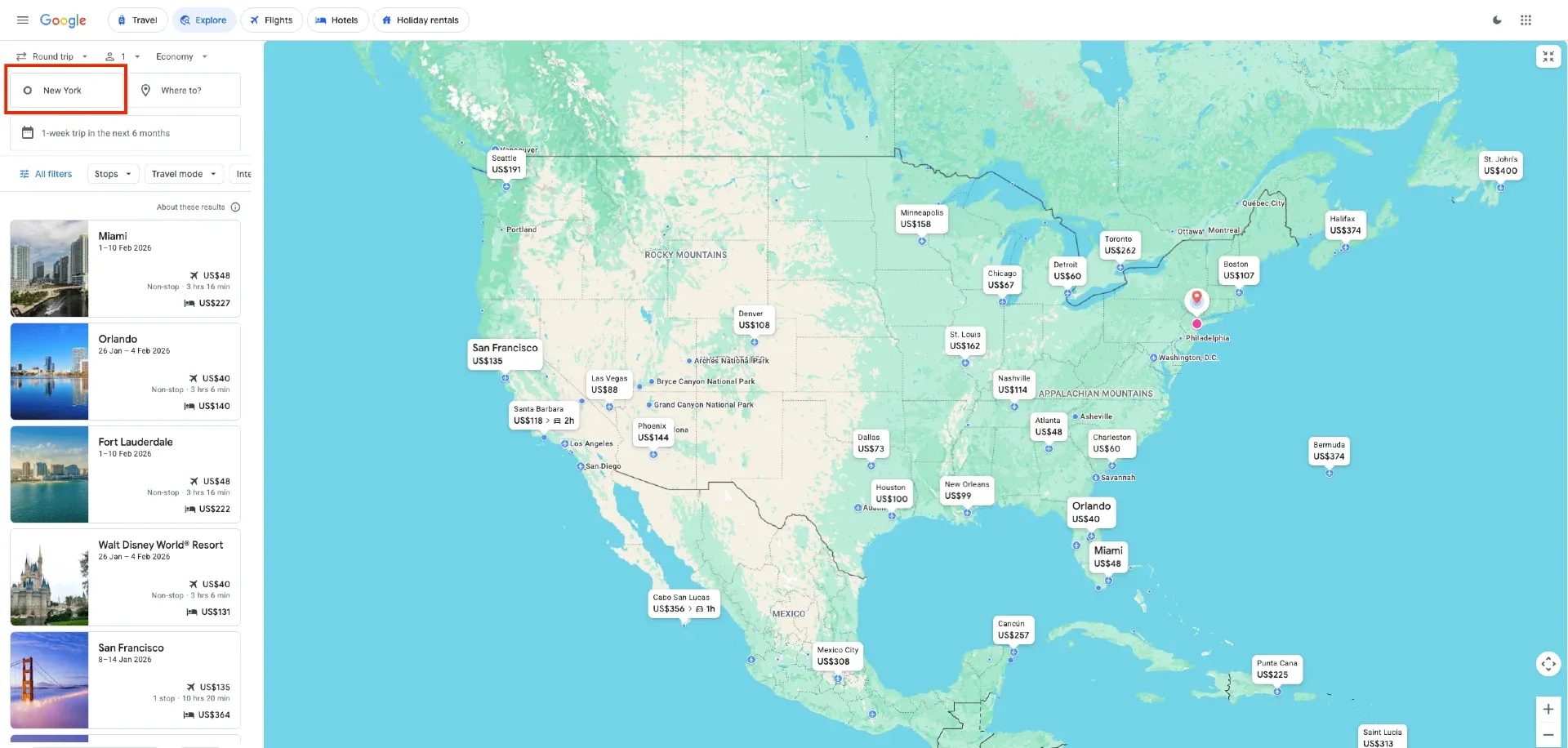
Start at google.com/travel/flights. In the departure box, type your home airport, or choose “Nearby airports” if you’re open to driving a bit to save money. You’d be surprised how often a secondary airport has dramatically better deals.
Step 2: Leave destination blank or choose a region
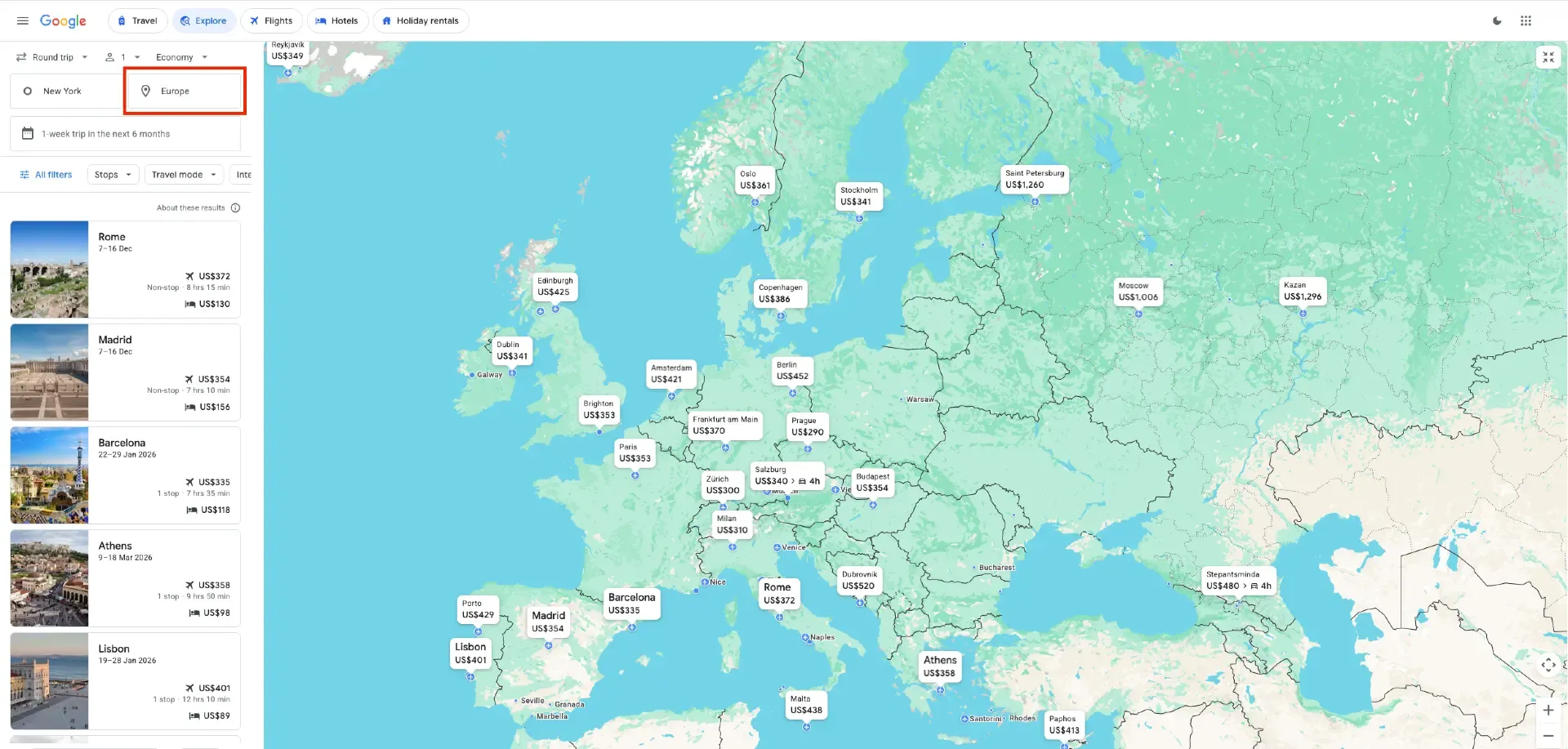
This is where the magic is. In the “Where to?” box, leave the destination empty to see prices worldwide. Or, if you want something slightly more focused, choose a region like Europe, South America, or Asia. The Explore map lets you zoom in or out later to discover deals to other regions not in your original search, so don’t overthink this step.
Step 3: Choose dates (flexible) and open the map view
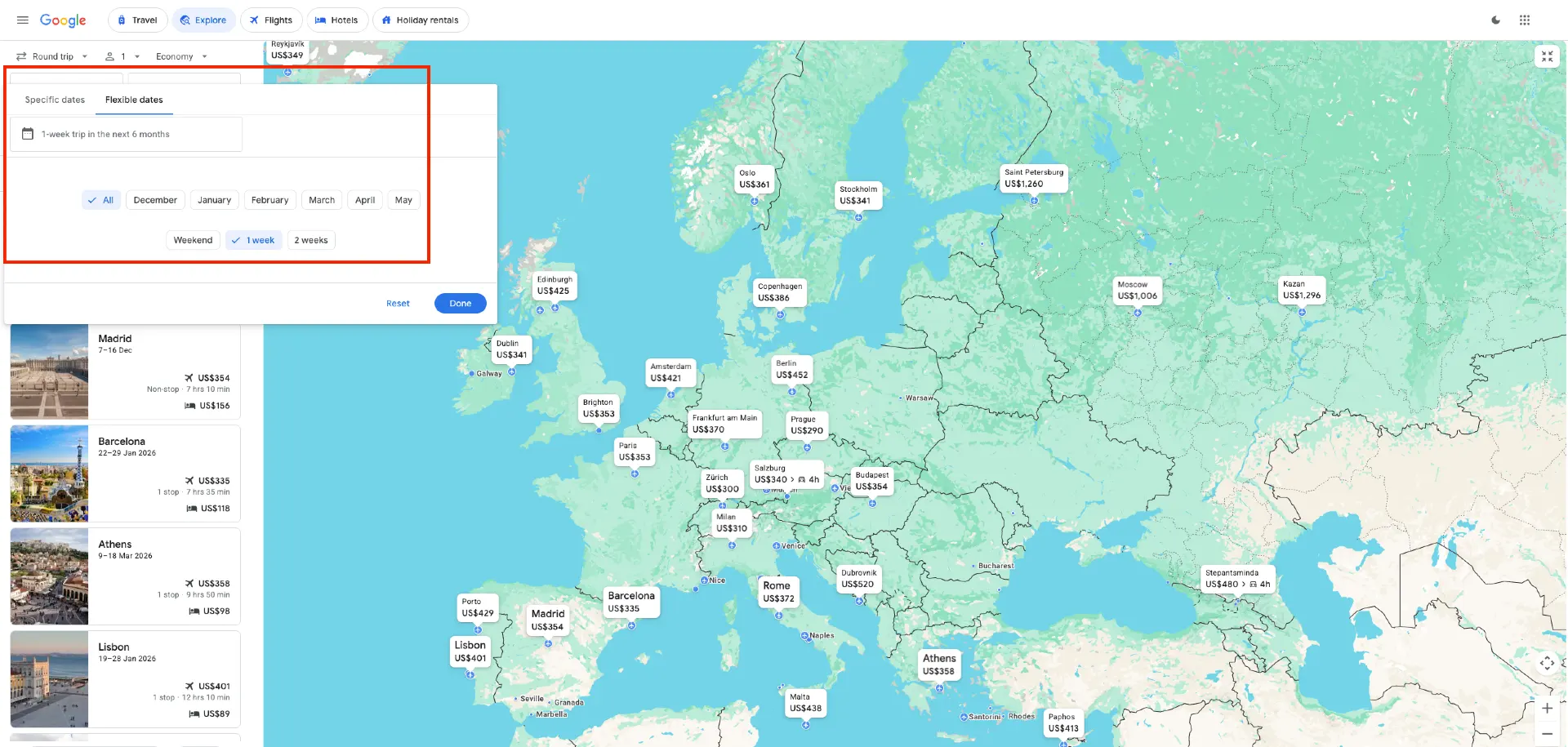
Click the dates field and choose one of Google’s flexible options: “Anytime,” “Flexible dates,” or a specific month. Flexible options unlock the best results. The more open your schedule is, the more deals you’ll see.
Once your dates are set, click Explore in the sidebar, and you’ll see a map with prices pinned to cities across the world. Drag, zoom, and pan to browse.
Found your dream destination using Google Flights Explore? Download the Going app to set up flight alerts so you know when prices drop and it's time to book.

Filter like a pro: Narrowing 500 destinations to your next trip
Now it’s time to turn hundreds of pins into real travel possibilities.
Use the “All filters” menu (price, stops, airlines, duration)
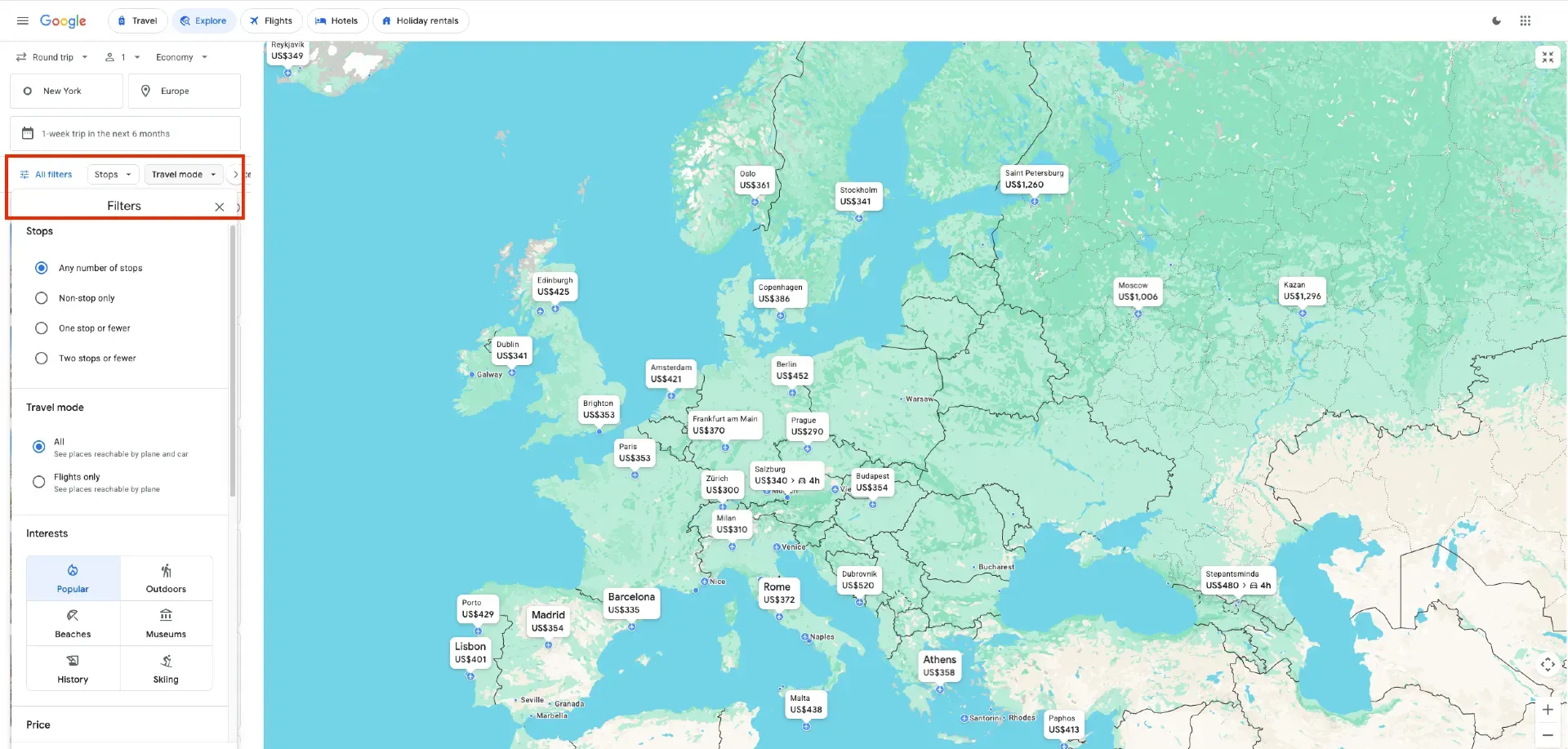
Click All filters to narrow things down:
- Price: Set your maximum fare to avoid unrealistic results.
- Stops: Choose nonstop only or allow connections for more options.
- Airlines and alliances: Useful if you want miles with a specific carrier.
- Flight duration: A lifesaver for long-haul searches.
You can also filter by bags, emissions, or booking sites depending on your preferences.
How the map visual works: zoom, drag, and click destinations
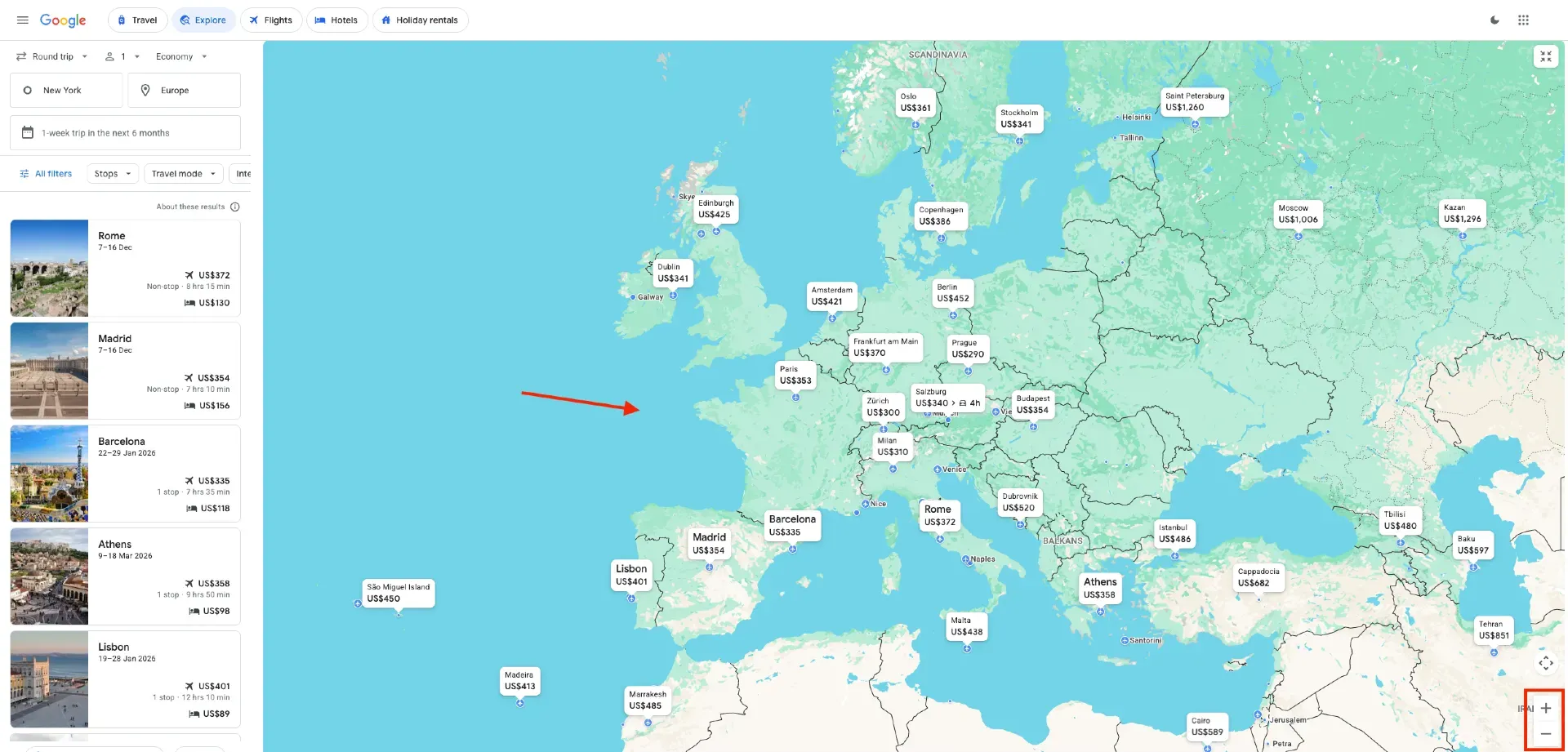
Explore uses a dynamic map. Here’s how to make the most of it:
- Zoom out to see global prices at a glance.
- Zoom in to reveal smaller airports or regional gems.
- Drag across continents to compare prices between multiple regions.
- Click a price bubble to see sample itineraries and airlines.
Some destinations only show a single sample fare, whereas others display a full list of date options and airlines. Prices update as you move the map, so expect them to shift a bit.
Things to check before you click through to book
When you click a destination, Google will show you available flight options. Before booking, double-check:
- Pricing: If the current deal is higher than the historical average, or outside your budget, set up a Google Flights price alert to track prices so you can book when the time (and price) is right.
- Airline policies: Basic economy? No bags? Check the details.
- Connection times: Some extremely cheap fares come with long layovers.
- Booking site: Google might route you to an OTA you don’t prefer, like Kayak or Skyscanner. If you want to book directly through the airline, ensure the option is available.
- Real availability: Occasionally a fare displays but sells out when you click through (aka it’s a “ghost fare”).
If everything looks good, you can book directly with the airline. This is usually the smoothest experience.
Want to learn everything about using Google Flights to find great deals? Check out our full guide to Google Flights.
Explore smarts: What the map won't tell you
When to use desktop vs mobile for Explore
Some things are “big screen” purchases. Flights might be one of those things for you.
The desktop version of Explore is significantly more powerful. It shows more destinations at once, has better filtering options, and offers smoother map navigation. The mobile version is fine for quick checks but can feel cramped, and some deals simply don’t appear without the larger desktop interface.
If you’re serious about finding and booking a good deal, stick to your laptop.
Limitations: airlines not included, “ghost fares” & hidden fees
A few things to keep in mind:
- Some airlines don’t appear, like a handful of small carriers.
- Ghost fares happen—Google displays a price that’s no longer available. Usually this fixes itself within minutes.
- Budget carriers may show low base fares, but extras like bags or seat selection can add up.
Explore is a discovery tool, not the final source of truth. Always verify before booking.
Combine Explore with other tools for best deals
Explore is excellent for inspiration, but pairing it with other tools gets you even further:
- Use Explore to find cheap destinations and travel windows.
- Switch to Google Flights’ date grid or price graph to compare exact days.
- Check the airline’s website directly for the final booking (usually safer).
- Use a deal-alert service like Going to catch price drops you’d never find manually.
This combo covers both the exploration of finding a destination that speaks to you and finding the right price to book the deal.
Conclusion: Make Explore work for you
Google Flights Explore removes the guesswork from planning by showing you where the cheap flights actually are. No more entering one city at a time or wondering if you’re missing a better option. With flexible date tools, smart filters, and a global map of real-time prices, it’s one of the fastest ways to uncover affordable destinations from your home airport.
But Explore isn’t the whole picture. It helps you discover deals when you go looking, while Going works in the background finding the deals you’d never spot on your own. Google Flights’ Explore map and Going work hand in hand for trip inspiration and price patterns. Going will also catch fleeting mistake fares, flash sales, and price drops as soon as they happen, so you never miss out on the best deals.
Together, Going and Google Flights Explore make traveling for less not just possible but surprisingly easy.
Frequently asked questions
What is Google Flights Explorer?
How do you search specific airlines on Google Flights?
Is there a better site than Google Flights?
Last updated October 13, 2026
Articles you might like
View All
How To Actually Use Google Flights (Not Just the Search Bar)
Sep 23, 2026
15 min read

Google Flights Price Alerts: How To Make Them Work for You
Sep 23, 2026
4 min read

Google Flights vs. Expedia: Which Is Better for Finding Cheap Flights in 2026?
Mar 19, 2026
5 min read