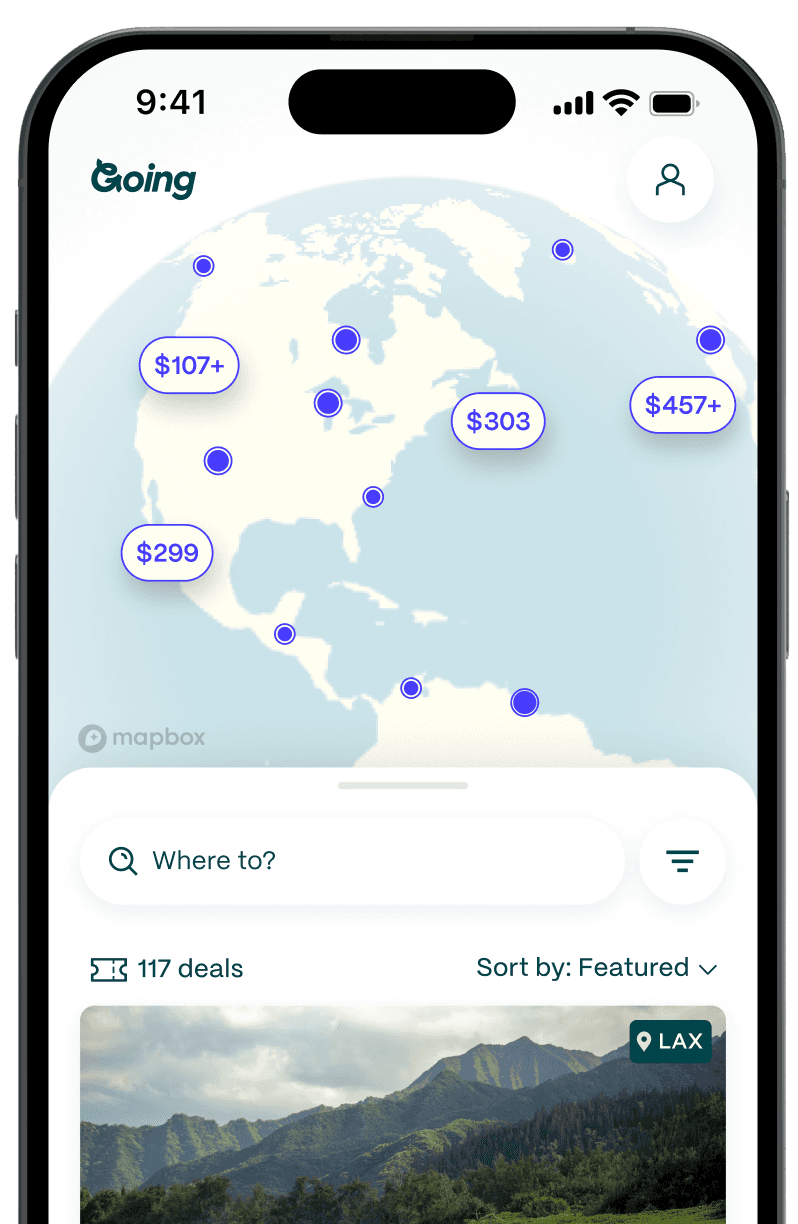
How To Actually Use Google Flights (Not Just the Search Bar)


)


September 23, 2026
15 min read
Table of Contents
To use Google Flights, go to google.com/flights, type in your departure and destination cities and your dates, and let it pull fares from 300+ airlines and booking sites. You can compare the options with the filters and date tools, then click through to the airline or an online travel agency to book.
Sure, that basic search works. But most people stop there, and that means leaving money on the table. Going has used Google Flights to source almost every deal we’ve sent our 10 million+ members over the past decade, and the real savings almost always hide in the features people scroll right past.
So I’ll take you past the search bar, to the tools that actually change what you’ll pay, the 2026 AI Mode updates worth knowing about, and the handful of mistakes that end up costing travelers hundreds of dollars.
Key takeaways
- Google Flights searches 300+ airlines and online travel agencies (OTAs) in real time, but it doesn’t sell tickets.
- The biggest savings come from three underused tools: multi-airport search (up to seven airports per side), the date grid, and the price graph.
- Use the bags filter to compare the real price of the flight with extras. On some budget carriers, a carry-on adds $30–$60 each way to a fare that looks like a bargain.
- Switch between “Cheapest” and “Best” depending on whether you care more about price or a combined price–travel time option.
- Google’s AI Flight Deals now lets you describe a trip in your own words and works in 200+ countries.
- Google's AI Mode now handles Flights tasks in conversation, too: you can track a fare or check its cost in miles and points just by asking.
- Google Flights shows you prices. Going finds the deals, including mistake fares, that a normal search never surfaces.

What’s new in Google Flights for 2026
Google Flights keeps adding tools, and a few recent ones are worth learning before anything else. They might just change how you search.
Google Flights features now work in AI Mode
In August 2026, Google started adding core Flights features into AI Mode. This means you can handle a couple of key tasks just by describing what you want, without opening Google Flights at all.
The most relevant is price tracking: describe your route and dates, then ask something like "track these flight prices for me," and Google emails you when the fare moves, exactly like it does from Google Flights (more on that below).
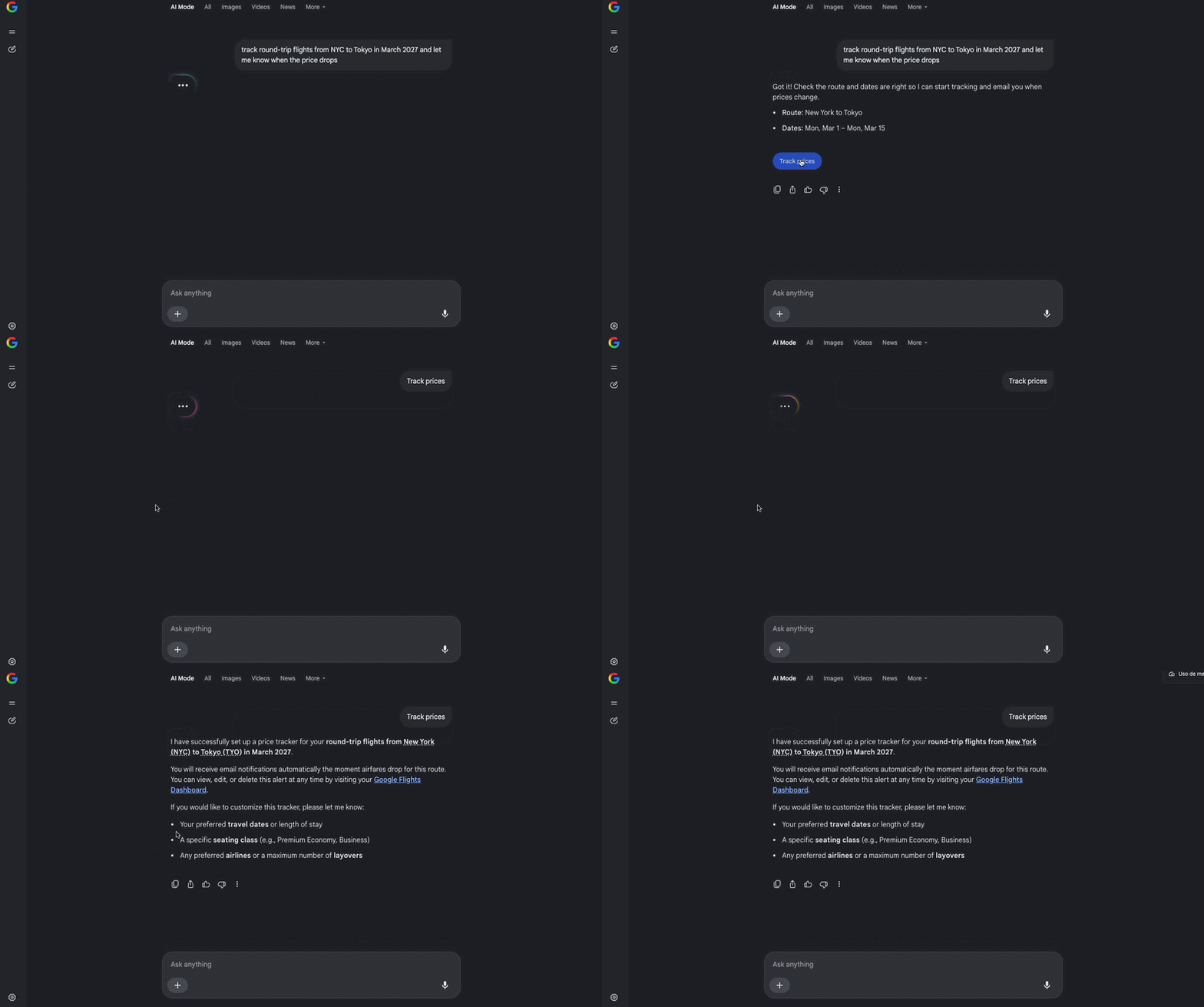
Also, you can now ask what a route costs in miles or points and see how many you'd need, pulled straight from the loyalty programs. It launched with a handful of airlines, including Alaska/Hawaiian and American, with LATAM, Lufthansa Group, and Flying Blue joining in the following weeks.
If you’re deciding whether to pay cash or burn miles, this quick check is something you couldn’t do in a normal search before.
“Cheapest” vs. “Best” sorting
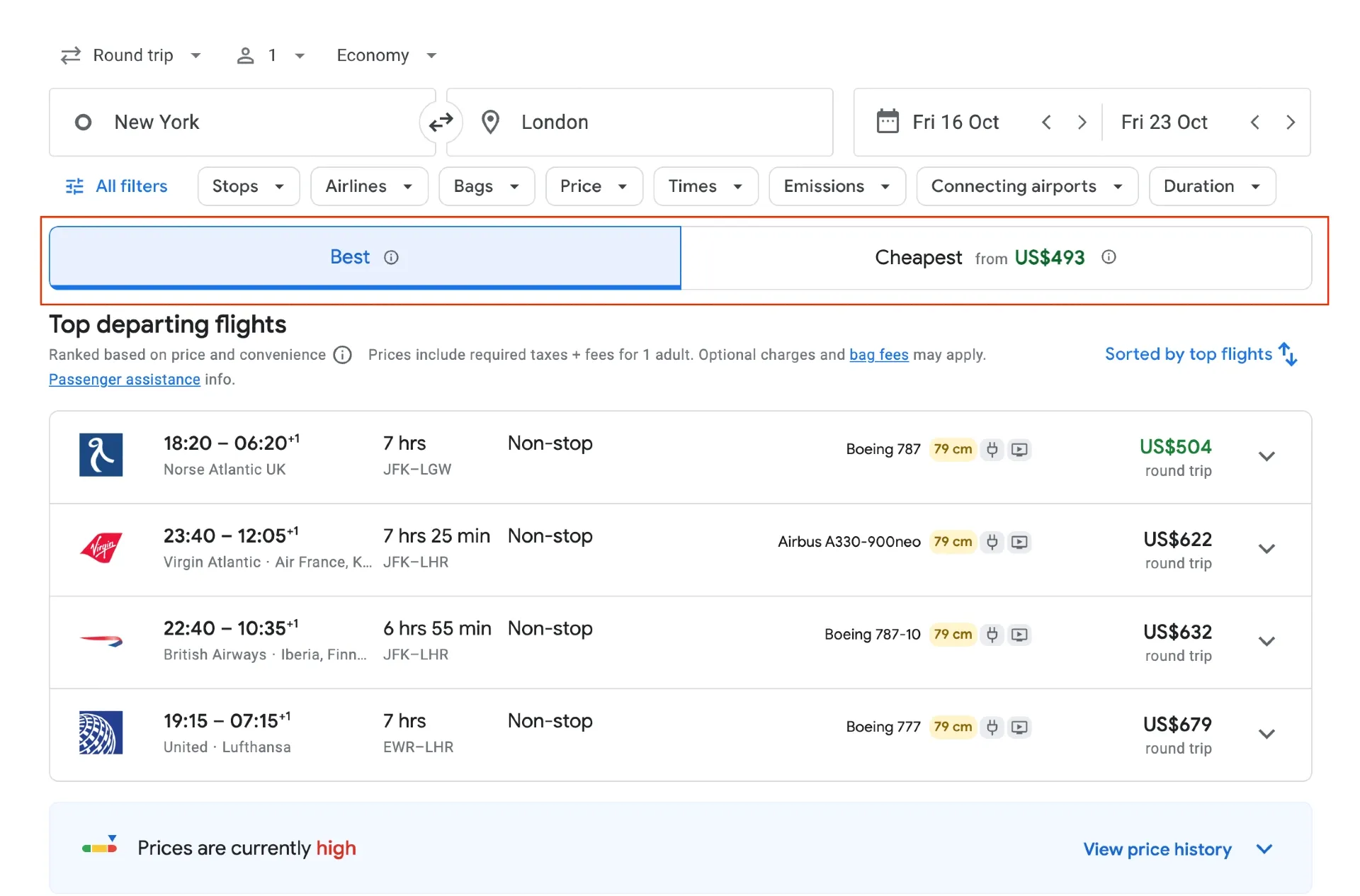
It’s not the newest feature, but you can now sort results two ways. “Cheapest” shows the lowest fare, full stop. “Best” balances price against total travel time, number of connections, departure and arrival times, and airline reliability.
| A cheap New York to Los Angeles route might run $89 with two connections and a 14-hour total trip on a budget carrier, while the “Best” option at $149 gets you a 9am nonstop in about six hours. That’s roughly eight hours back for $60. |
On a leisure trip where you’re watching every dollar, “Cheapest” might win, but on a work or family trip where your time is the expense, “Best” could be worth it.
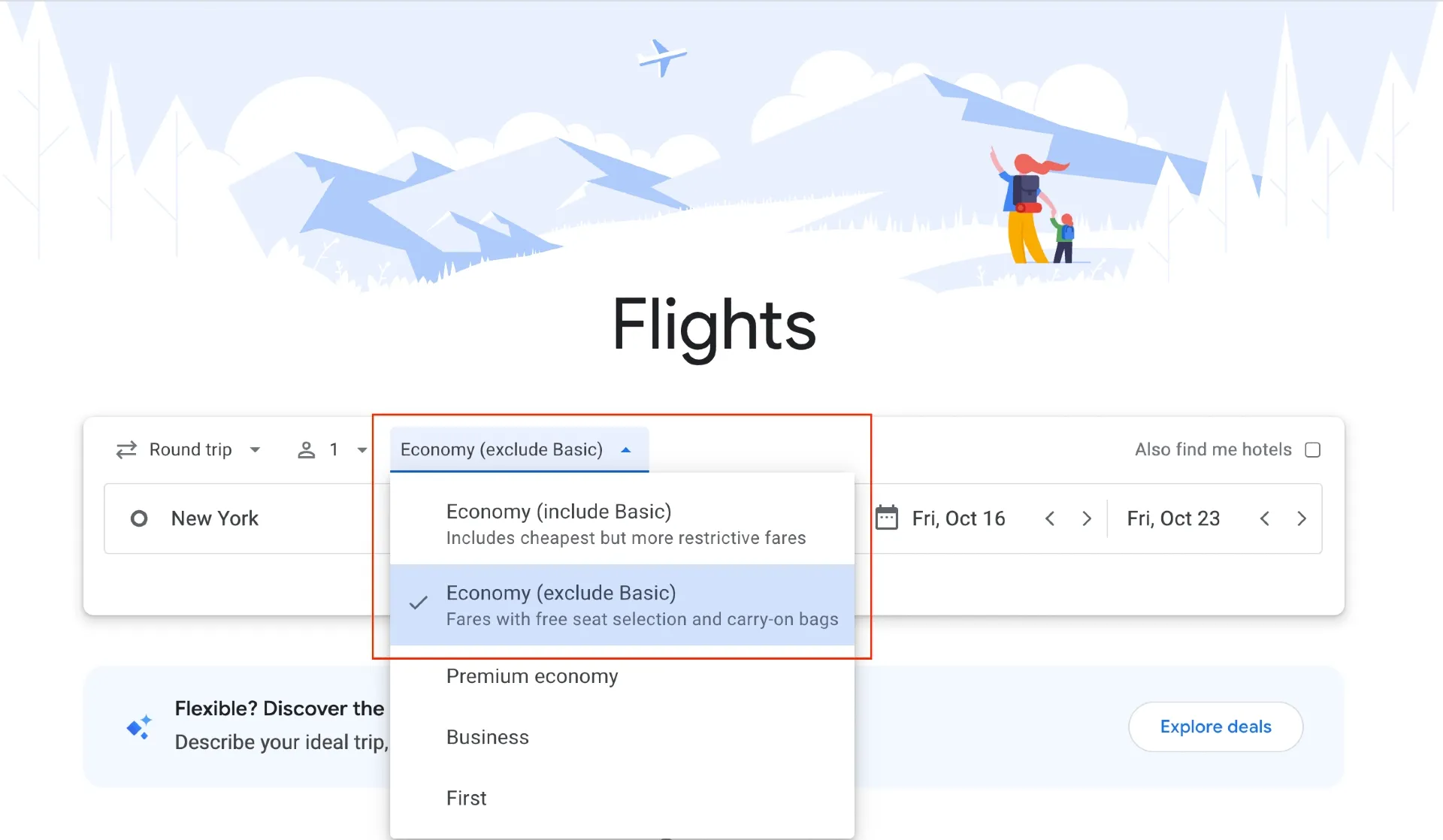
The bags filter (and how to exclude basic economy)
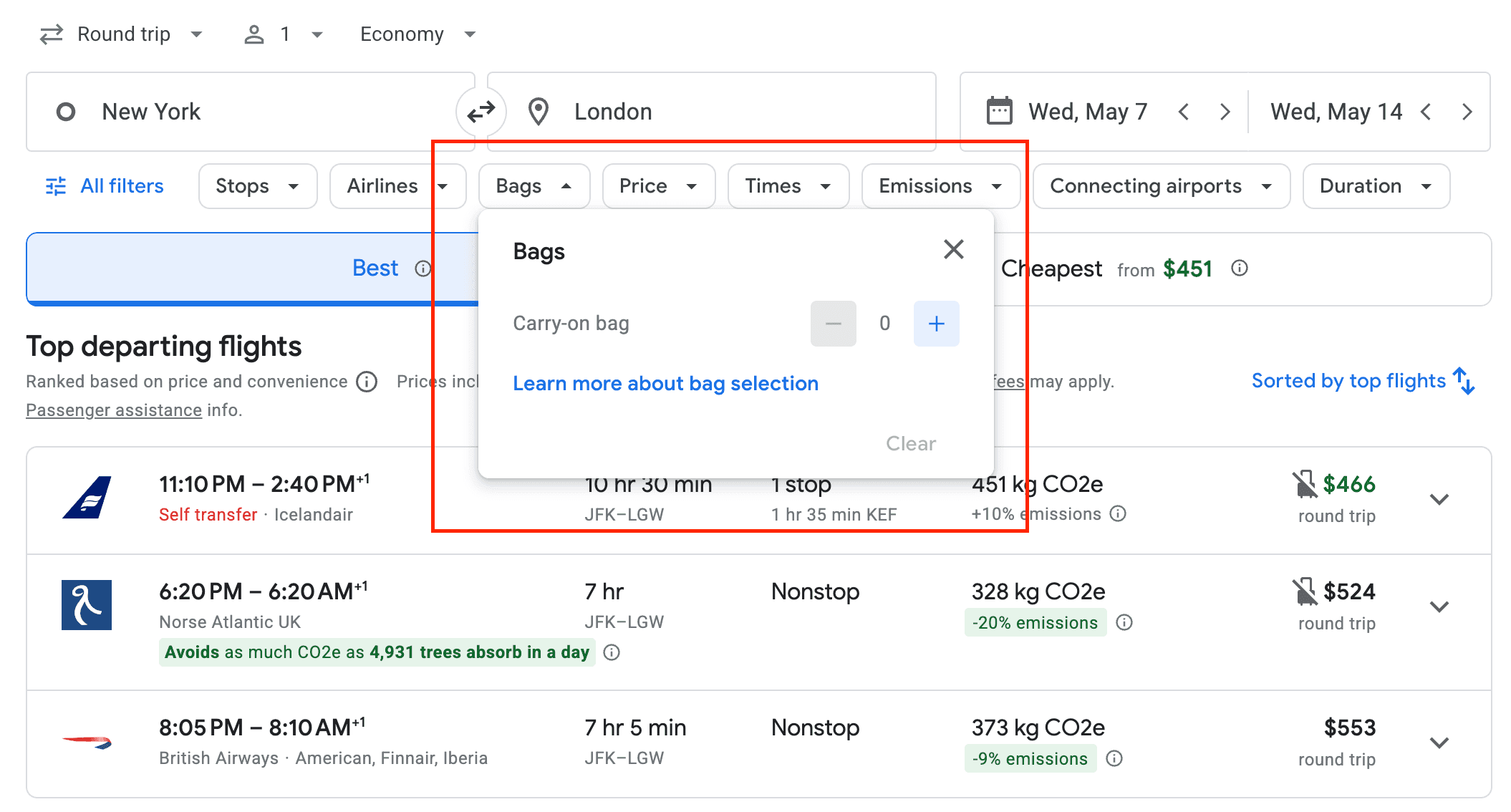
Google added filters that show the true cost of a fare, not just the sticker price. The bag filter is the one I use most. Set it to “1 carry-on” or “1 checked bag,” and watch the price adjust so you’re comparing apples-to-apples.
This matters most with budget carriers, where a carry-on can quietly add $30–$60 each way.
You can also use the fare-class filter to exclude basic economy. It’s worth doing on domestic routes with major US carriers (e.g., American, United, Delta, JetBlue, Alaska), where basic economy often means no seat selection until check-in, last boarding group, and no changes. In some cases, like on United, it can also mean no carry-on (only a personal item is included).
| If upgrading to standard economy costs $40 at booking but the airline charges $60 at the gate for the carry-on that basic economy doesn’t include, you can actually save money by skipping basic economy and opting for standard economy from the get-go. |
Southwest finally shows up in search
For years, Southwest kept its fares off third-party search tools and sent everyone to its own website. That changed in May 2024, when Southwest started listing fares on Google Flights. Note: You’ll still click through to Southwest to book.
Since then, Southwest has continued getting more accessible for searching. In 2026 it also began selling through Expedia. Somewhat controversially, it has also added basic economy fares and checked-bag fees, moving closer to how the legacy carriers operate.
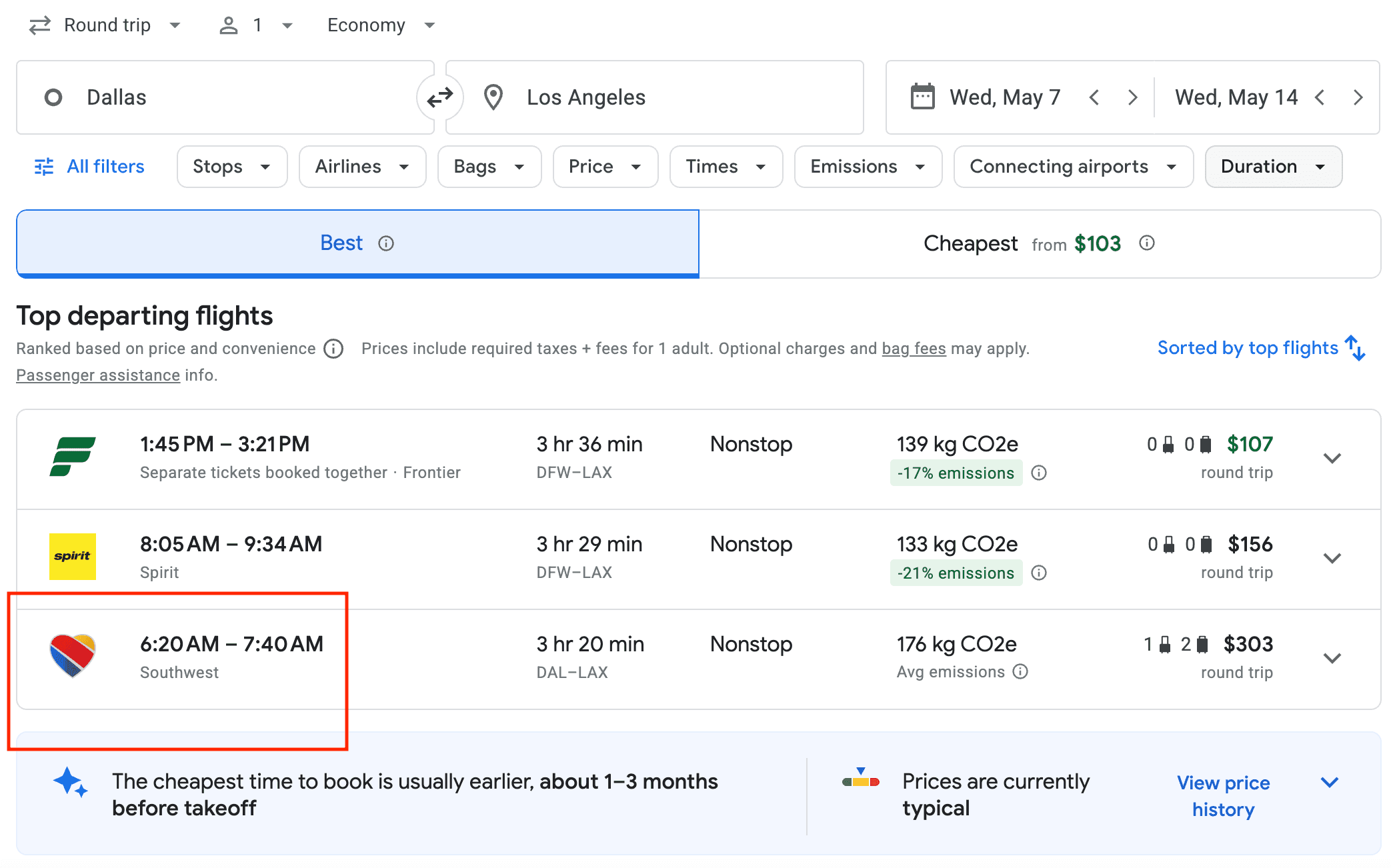
The upshot for you: Southwest now appears in a normal Google Flights search, so you can compare it head to head with everyone else instead of running a separate search on its site.
Google’s AI Flight Deals: search like you’re talking to a friend
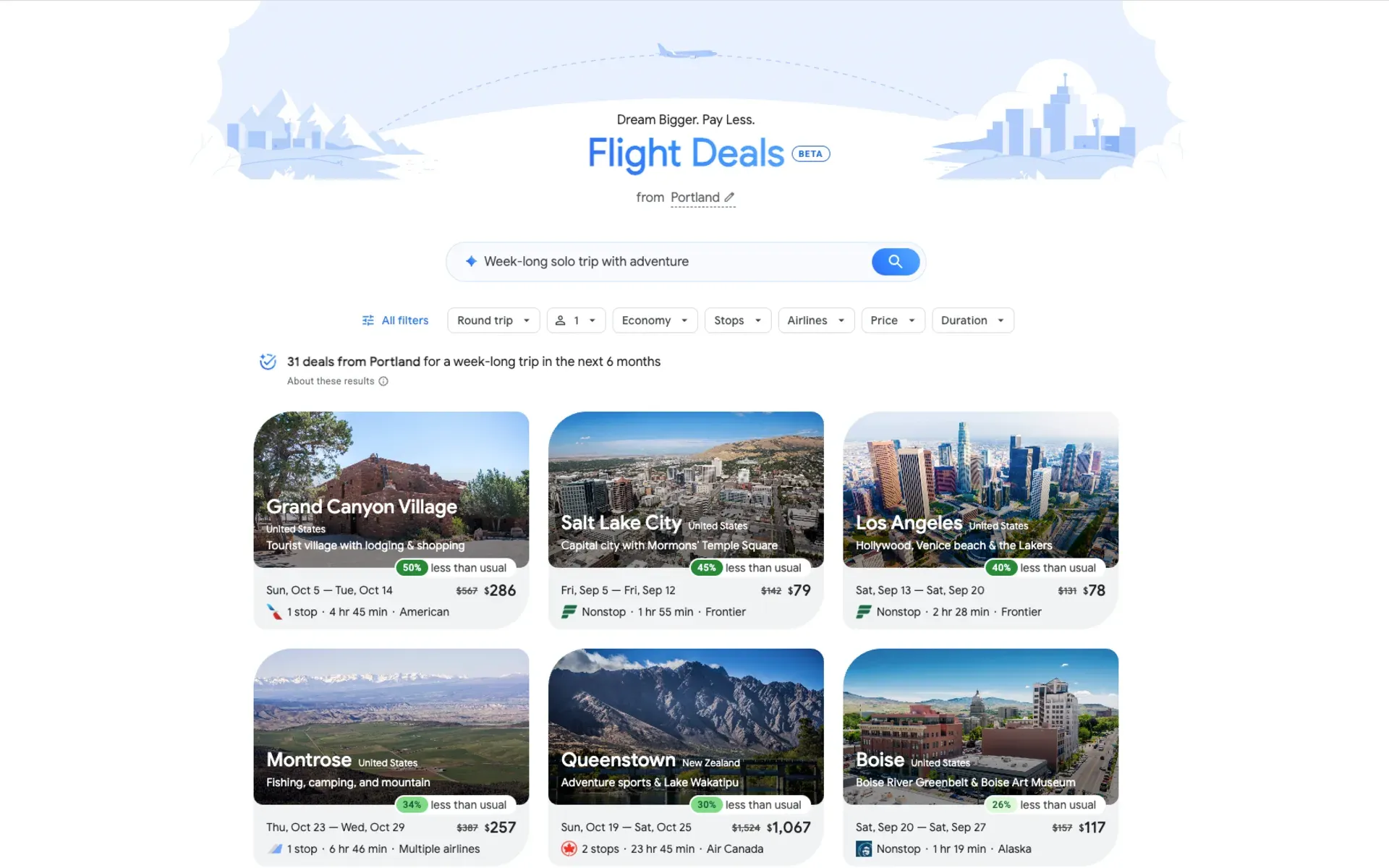
Flight Deals is an AI-powered search that lets you describe the kind of trip you want in plain English instead of plugging in exact dates and airports.
Try prompts like:
- “Week-long solo trip somewhere warm, nonstop only”
- “10-day trip to a city with great food for under $600”
- “Long weekend of hiking, not departing from Newark, under $500”
Google’s AI reads the request, cross-references real-time fares from hundreds of airlines and booking sites, and surfaces destinations you might never have thought to search. You’ll find it on the Flight Deals page or in the top-left menu inside Google Flights.
Since its launch, Google has expanded it to more than 200 countries and 60+ languages.
- What it’s great for: discovery, inspiration, and flexible travelers with no fixed destination.
- What it’s not great for: Google’s bar for a “deal” is higher than a specialized tool’s, and it won’t catch mistake fares. It’s a strong starting point, but it’s not the last word on the lowest price.
What is Google Flights, exactly?
Google Flights is a search engine, not a booking site. It scans fares from 300+ airlines and OTAs and shows you the options, then sends you to the airline or an OTA to actually pay.
Think of it as your personal airfare assistant. It won’t sell you the ticket, but it’s unmatched at helping you explore every option first.
Example Say you live in Philadelphia and want to get to Europe this summer. A basic search might only check Philadelphia (PHL) to Paris. With Google Flights, you can add nearby departure airports like Newark (EWR) or the metro Washington, DC, airports (IAD, DCA, BWI), and add destinations like Amsterdam and London alongside Paris. Google compiles all of it and shows the cheapest combination across a full year of dates if you want. |
Pros and cons of Google Flights
| Pros of Google Flights | Cons of Google Flights |
| Fast, real-time results | Doesn’t always have the absolute lowest fare; smaller OTAs sometimes beat it |
| Calendar view to spot the cheapest upcoming dates | Doesn’t include every airline, especially some international budget carriers |
| Search up to seven departure and arrival airports at once | Occasionally shows “ghost fares” that vanish at booking |
| Price graphs that flag whether a fare is high, low, or typical | No booking or refund handling; you deal with the airline or OTA |
| Explore map for flexible-destination searches |
>> Want more ways to save? See our guide on how to find cheap flights.
How to use Google Flights, step by step
Set your departure and arrival airports for the most options
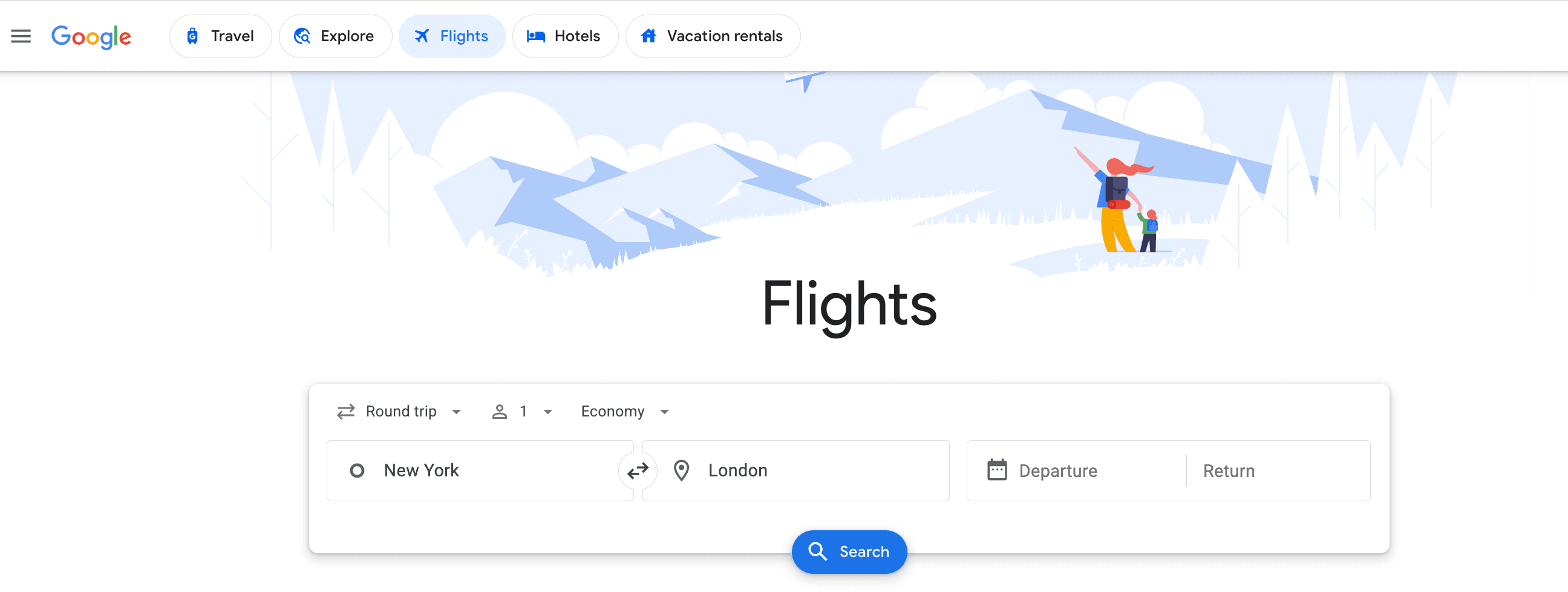
On the homepage, type where you’re flying from, then add nearby airports.
Flying out of New York? Don’t just search JFK. Add LaGuardia (LGA) and Newark (EWR).
Some metros have city codes that bundle them, like NYC or WAS (Washington, DC). Do the same for your destination. Instead of only London Heathrow (LHR), add Gatwick (LGW) or Stansted (STN).
Personally, I don’t mind a short train ride from an alternate airport if it saves me a couple hundred dollars.
Pick your dates with the calendar
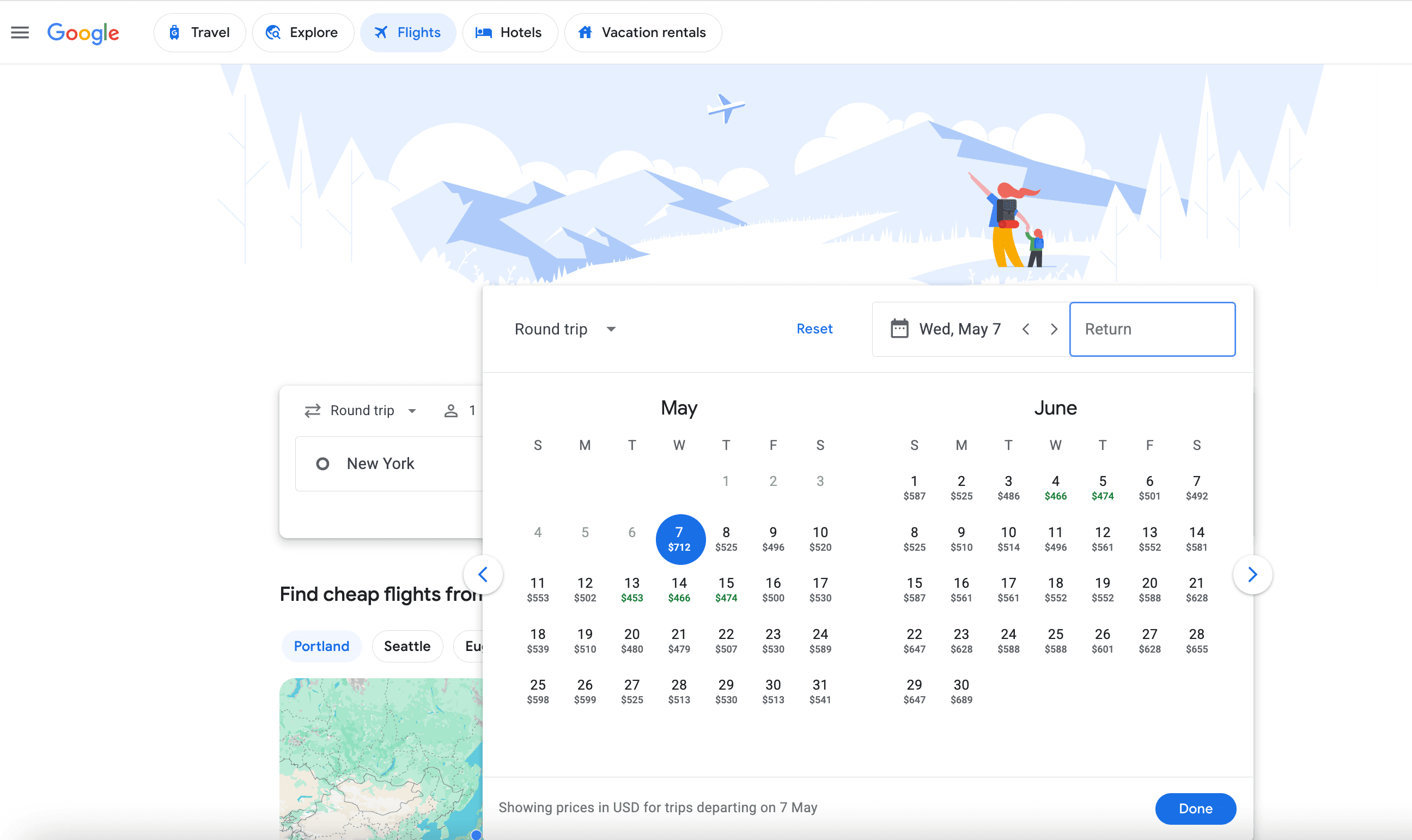
When you enter a route, Google shows the next couple of months of fares, with the cheapest dates in green.
Two things to remember: Those green dates are only the lowest within the window you’re viewing, so click the arrows to check earlier or later months. Also, the prices reflect the trip length you searched, so try adjusting it. A seven-day trip and a nine-day trip on the same route can be priced very differently.
Choose your flights and book
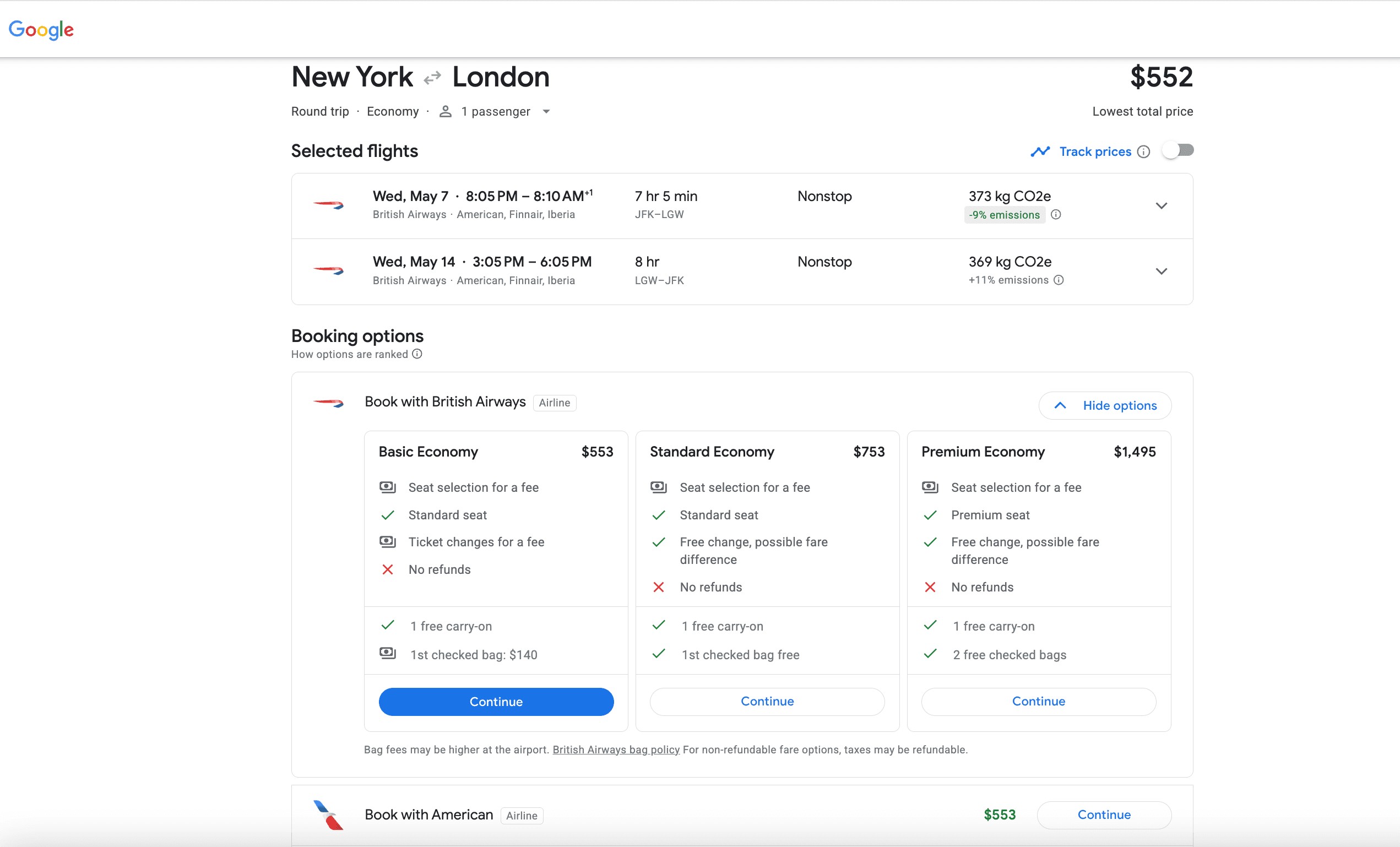
Click the flight that fits, then pick your return if it’s a roundtrip. If you change your mind on the outbound, click the airport codes on the left, just above “Returning flights,” to reselect your departure flight.
Once you’ve made your selections, Google sends you to the airline or OTA to finish booking. With some airlines you’ll see “Book on Google,” which passes your details along so you don’t have to leave the page.
One tip from experience: Double-check the fare details on budget carriers before you commit, since seat selection and carry-ons are often extra.
>> If you want to sidestep the extra charges, see our guide on avoiding airline fees.
What to do about “ghost fares”
Sometimes a great fare disappears the moment you click book. We call that a ghost fare, and it usually means the airline changed the price before the search results caught up.
Don’t panic (but don’t get attached to that price).
Check the airline’s site directly. If it’s gone there, try Skyscanner or Kayak, or nudge your dates by a day (the fare might be sold out for May 2–9 travel dates but still alive for May 3–10). If it’s truly gone, set a price alert and move on.
Fares can shift within the hour, so acting fast is half the battle.
Master the filters for maximum savings
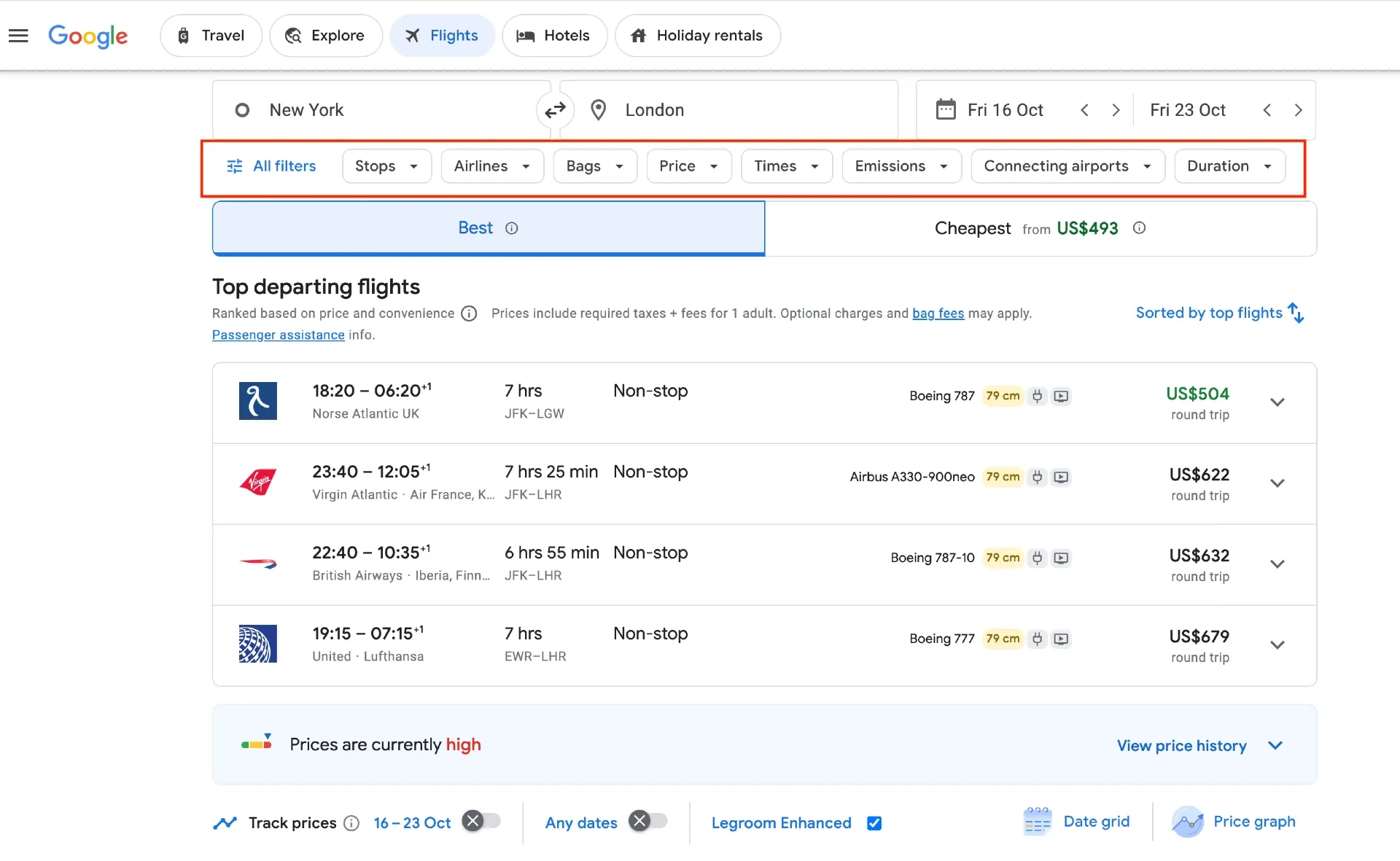
Filters are what separate a decent Google Flights search from a great one. Here’s how I use each one:
- Stops: Want the shortest trip? Start with nonstop. On a budget? Don’t rule out a single connection. Even one stop can save a lot.
- Airlines: Filter to your loyalty carrier to earn miles, or uncheck airlines you’d rather avoid.
- Bags: Make sure the fare includes the luggage you need. Budget carriers love to advertise a low base fare and charge for the rest.
- Price: Set your maximum, and hide everything above it. This pairs well with the Explore map.
- Times: Filter out the departures that don’t work for you. For instance, if you hate early-morning flights, hide anything before 6am.
- Emissions: Google estimates a flight’s carbon footprint from the aircraft, routing, and cabin. A nonstop on a newer plane in economy will show far lower emissions than a connecting business-class itinerary on an older jet.
- Connecting airports and layover duration: Route around hubs you dislike, and use the layover-duration control to avoid overnight connections. Capping a New York–London search at a two-hour layover, for example, trims the list down to the itineraries that won’t leave you stranded at the gate for hours.
- Duration: Set a maximum total travel time. If a nonstop takes five hours, capping the trip at seven can remove the “deals” that come with an eight-hour layover.
- Flight class: Search economy through first. Pair this with Going Elite, and you’ll get alerts for 40–50% off, even in business and first.
Find your destination with the Explore map
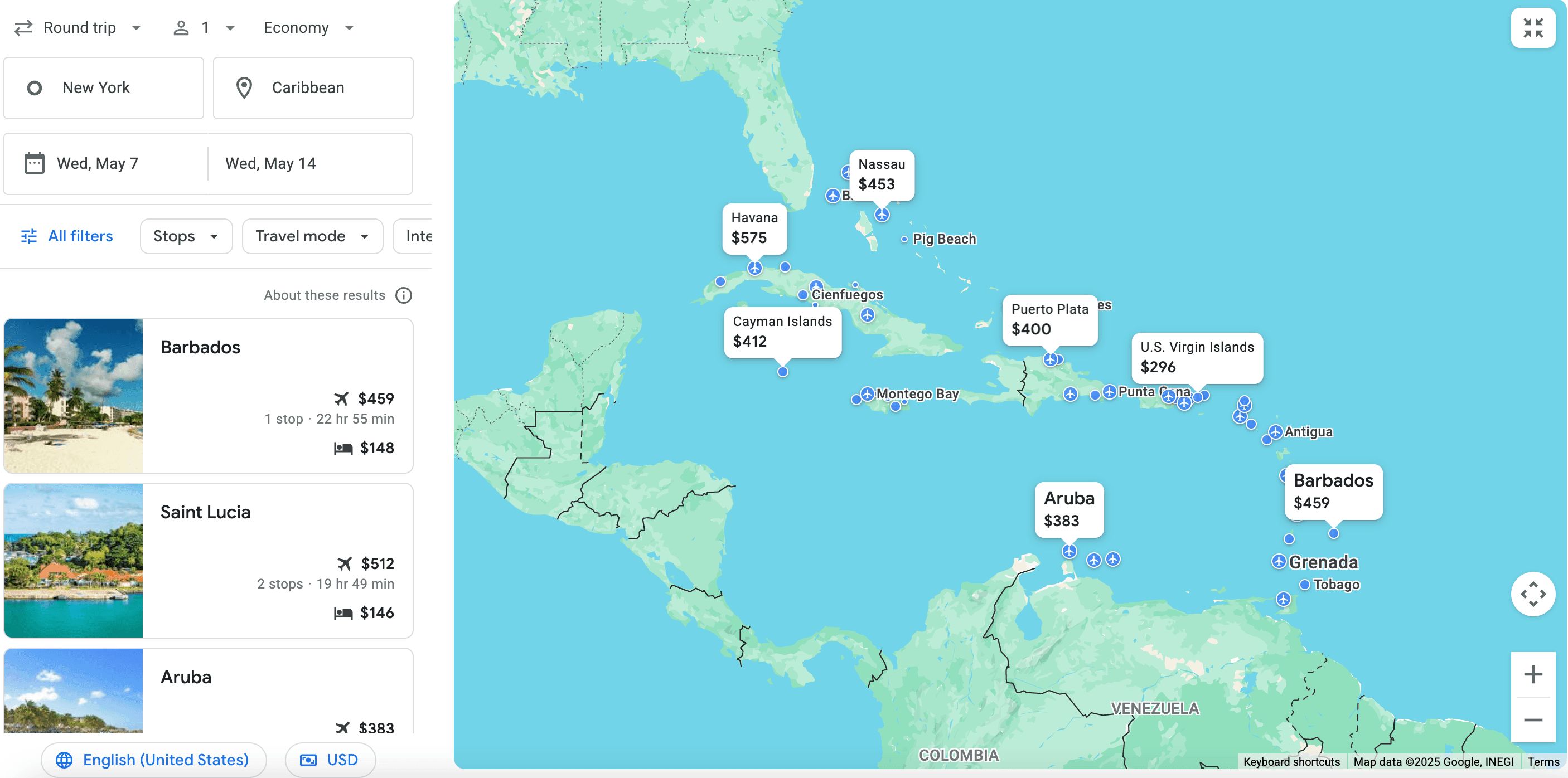
Sometimes the destination matters less than the price. The Explore map is one of my favorite tools for exactly that.
Type in your home airport, set your dates (or leave them flexible), and the map shows fares to destinations all over the world in about ten seconds.
You can run a normal search, but put a country, region, or continent in the destination box and click Explore, or just open the Explore section at the top.
Either way you’ll land on a map of fare options, defaulting to the cheapest trips from your home airport over the next six months. Add a price ceiling, and the map narrows without locking you into one place.
Keep in mind that fares can look very different if you search the next day. Airlines use real-time dynamic pricing, so prices shift continuously with demand. The Explore map is best when you’re flexible and just want a good deal somewhere.
Reading prices: when to book and what “typical price range” really means
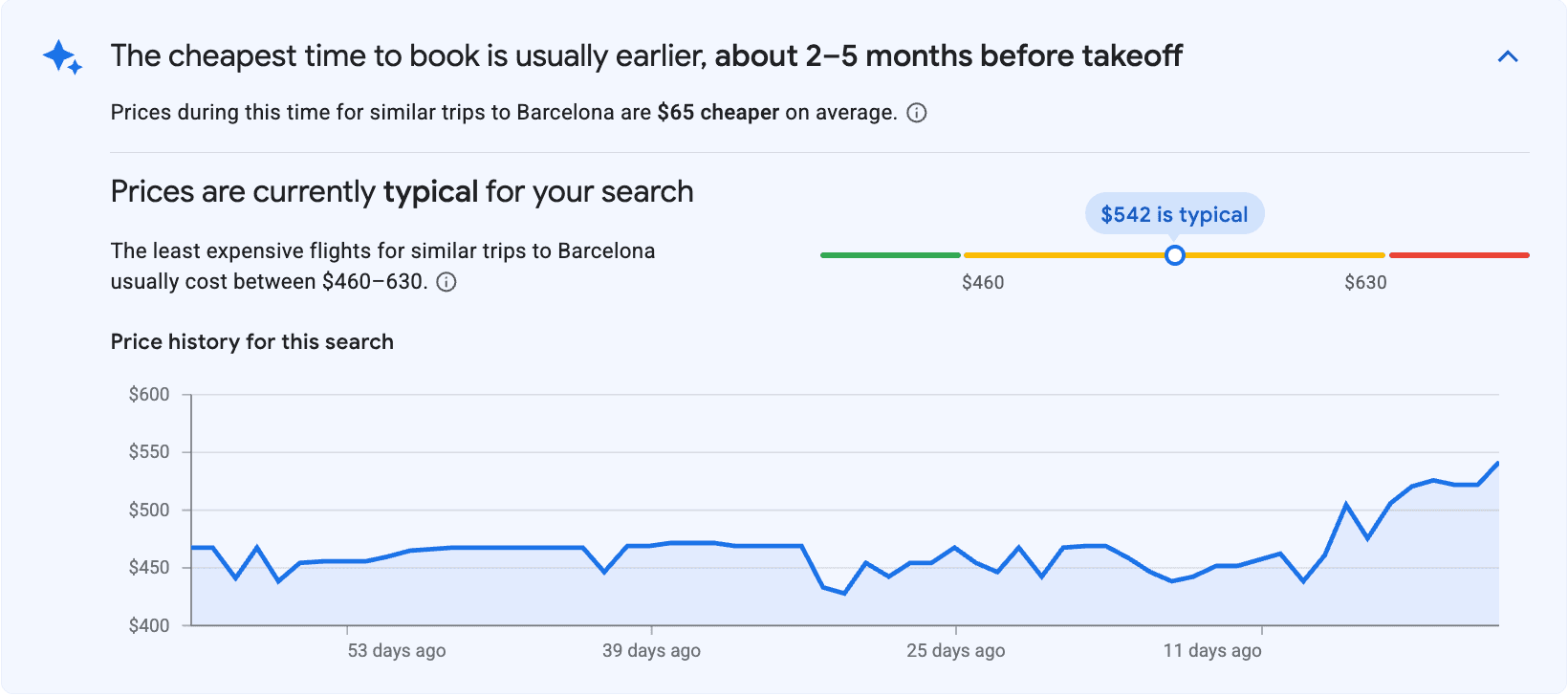
Google gives you three views of pricing, and together they tell you whether a fare is worth grabbing.
The price graph shows how fares have moved on your route over recent months. Look for sharp drops (sales), steady climbs (rising demand), and seasonal patterns. Google also color-codes fares as low (green), typical (yellow), or high (red) versus recent prices on that route.
Take their typical price range feature with a grain of salt, though.
Google’s baseline is often higher than what I’d call a real deal. For instance, it might peg an off-peak New York to Paris roundtrip around $1,050 as “typical,” but $750 is the ceiling of what I’d call a normal price on that route.
The “when to book” prompt (things like “Book by [date] for the best price”) is based on historical booking patterns. Don’t let “prices are high” spook you, because prices are often higher before the ideal window, which tends to be about one to three months out for domestic trips and two to eight months out for international.
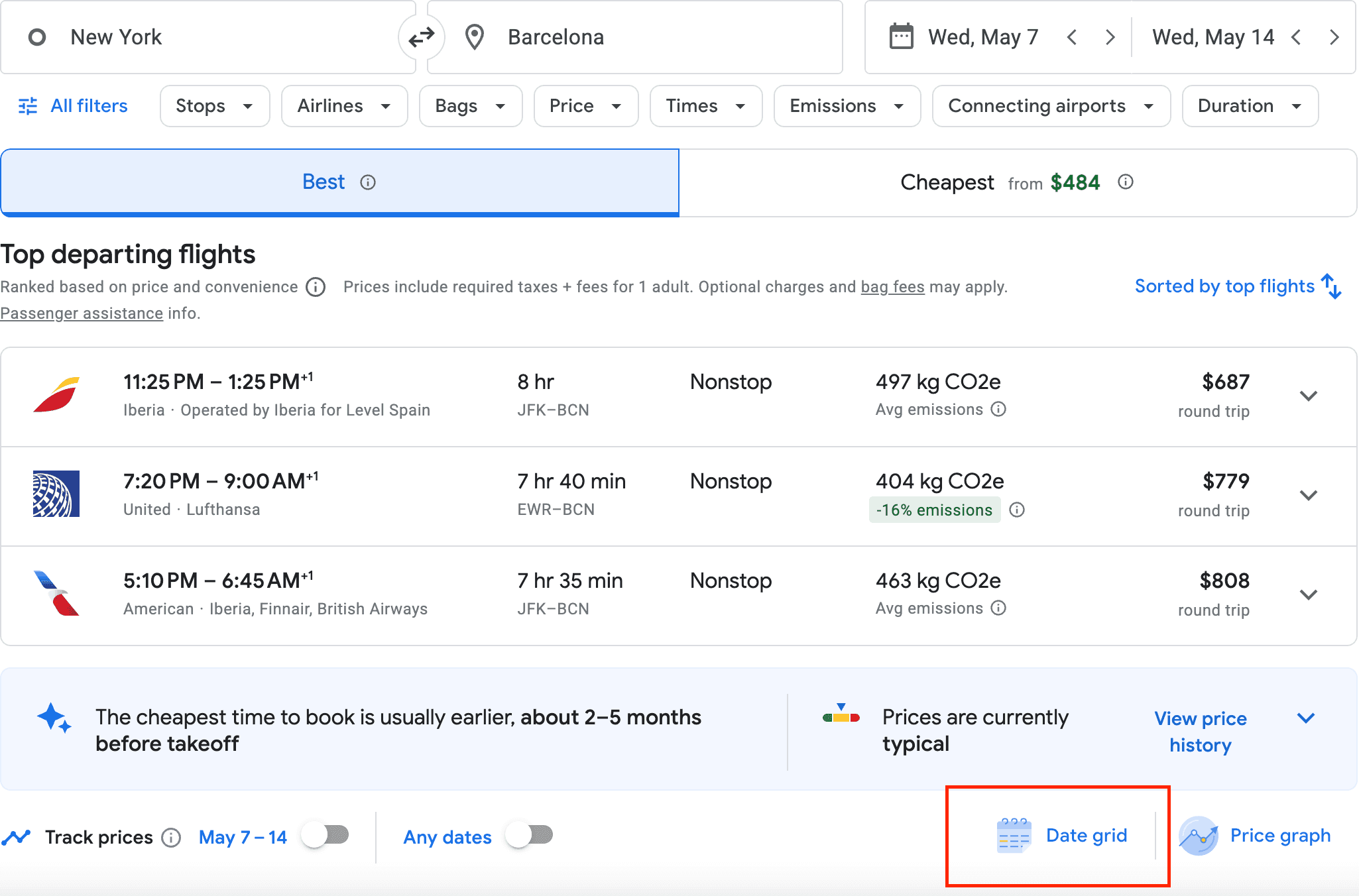
Finally, the date grid shows fares across different departure and return dates and trip lengths at once, which makes it easy to see that leaving a day earlier or coming back a day later can drop the price. It’s the most underrated way to shave a fare down without changing your plans much.
3 viral Google Flights tricks worth trying (and one to be careful with)
Travelers have turned plenty of Google Flights tricks into viral content, and a couple are actually pretty useful.
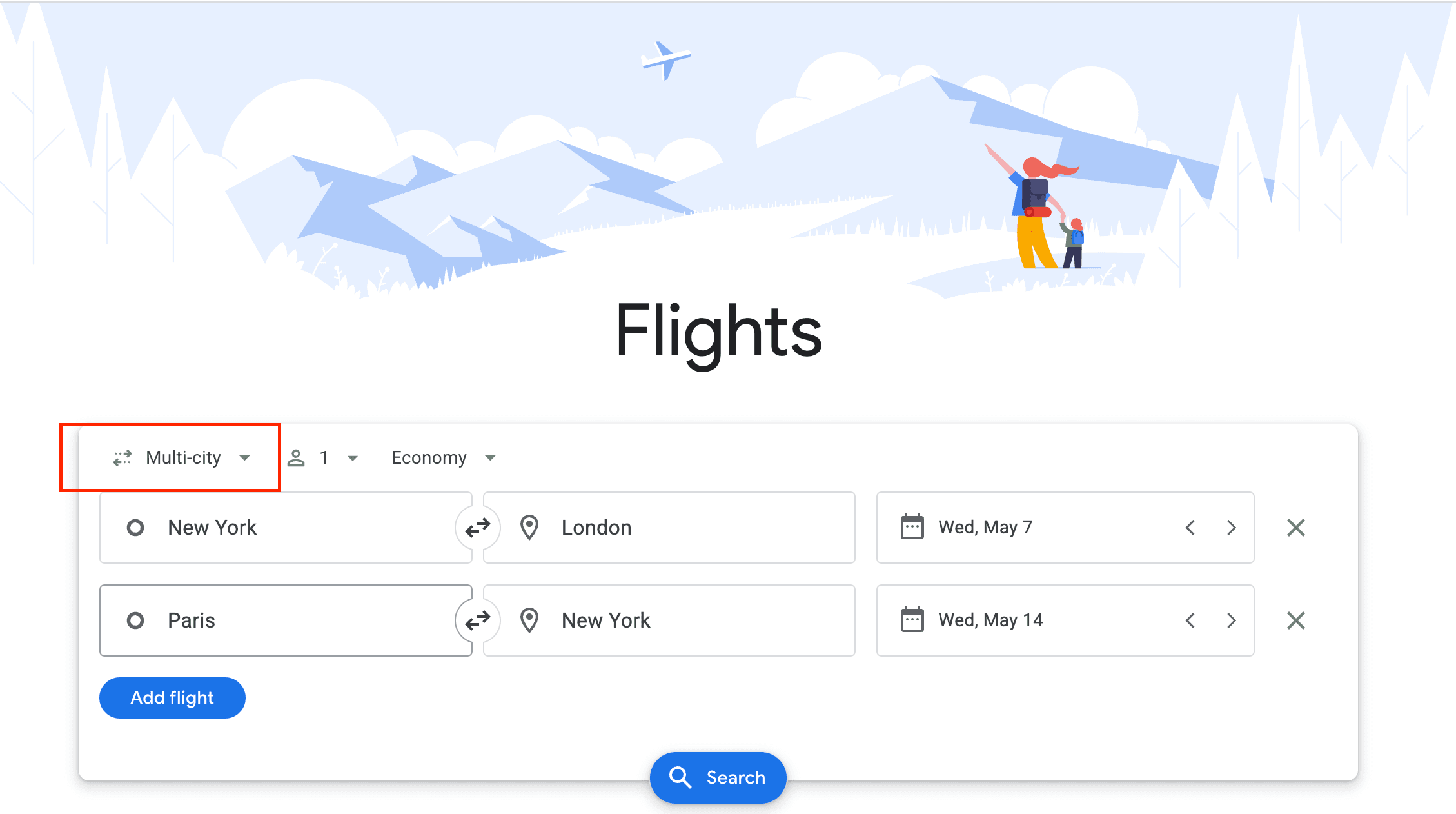
1. A roundtrip isn’t always cheapest. Two one-ways, sometimes on different airlines, can beat a standard roundtrip, especially domestically. Use multi-city to string legs together, like New York to London, then Paris to New York, and add a second transport between yourself. To build one, click the “Round trip” dropdown, choose “Multi-city,” and add up to five legs.
2. Search for one passenger, even if you’re traveling with a group. Airlines sell seats in “fare buckets,” with only a few at the lowest price. Search for four when two cheap seats are left, and Google shows the pricier bucket for all four. Search for one instead to see the actual lowest fare, then book the cheap seats first. The catch: You’ll book separately, and prices jump once the cheap seats sell out.
3. Fly into a cheaper gateway city. On long-haul routes, going straight to your final destination might not be the cheapest way in. Use the Explore map to find an affordable major hub nearby, like London, Madrid, or Lisbon for Europe, then book a separate budget flight or train onward. Just leave a buffer, since separate tickets mean a delay on the first won’t protect the second.
Be careful with hidden-city ticketing. This is booking a flight with a layover in the destination you’re intending to stay in and skipping the final leg. It works because a longer route is sometimes cheaper than a direct one. For instance, a nonstop New York to Miami might be $300, while New York to Orlando via Miami is $180. But airlines treat hidden-city ticketing as a violation and have suspended accounts, revoked status, and banned flyers over it. If they catch the pattern, they can cancel your remaining legs, so it only works one-way, carry-on only, and if you’re aware and willing to accept the consequences if you get caught.
>> For tips beyond Google Flights, check out our guide on flight hacks.
Picking your seat: legroom and in-flight amenities
The Legroom for Google Flights Chrome extension color-codes seat pitch, so you can see how much space you’re getting before you book.
For reference, standard economy runs about 30 to 31 inches, while premium economy can reach 38. Is five extra inches worth $40 on a 10-hour flight? Your call.
Google Flights also shows seat maps for many airlines, so you can weigh exit rows (more legroom, sometimes no recline) against bulkhead seats (extra room, no under-seat storage).
Google shows a flight’s amenities as small icons on each flight. It’s worth knowing what they mean so you can tell before you book:
- A Wi-fi symbol means onboard internet is available (paid or free varies by airline).
- A power-plug or USB icon means in-seat power for your devices.
- A screen icon means seatback entertainment.
- A seat-recline or lie-flat icon indicates the seat type in premium cabins.
Beyond flights: the Travel page
Once you’ve searched or booked, click “Travel” at the top to pull hotels, vacation rentals, and things to do into one place, alongside your flights.
If you book with the same email tied to your Google account, it can automatically gather your reservations (i.e., flight numbers, times, hotels) from your inbox and organize them, plus keep “potential trips” you’ve searched but not booked. For multi-city travel, it’s a tidy way to keep everything in one view.
Track prices and set alerts
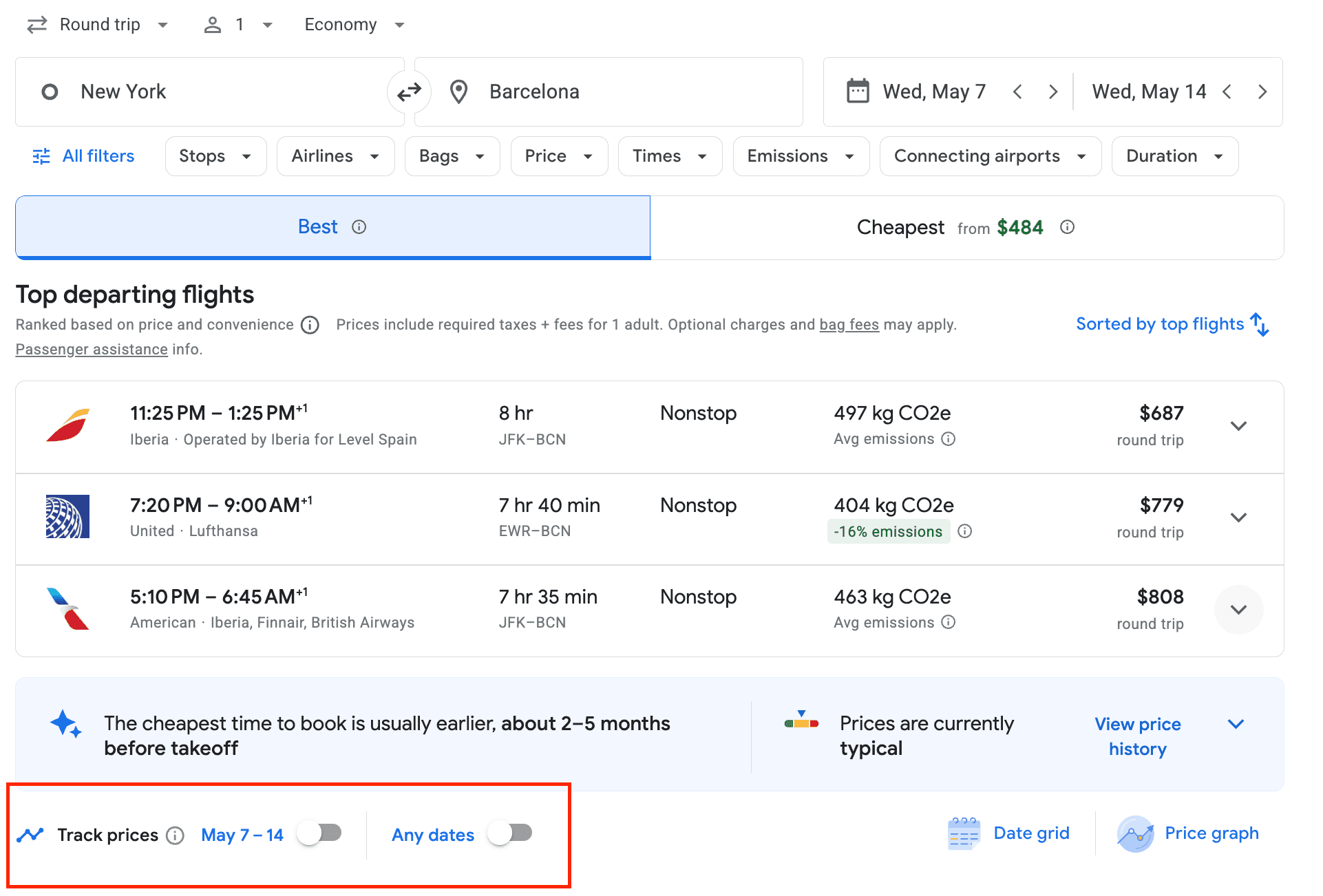
Google Flights’ price tracking sends alerts when a specific route’s fare changes. Here’s how to set it up:
- Sign in to your Google account.
- Enter your departure, destination, and dates.
- On the flight results page, toggle “Track prices” so it turns blue.
- Get email alerts when the price moves. For flexible plans, choose “Any dates” before turning tracking on.
It’s useful for a route you already have in mind. But it has limits: You can’t set a target price (it pings you on any change, up or down), alerts are tied to the exact route you searched, and the volume can bury the alerts that you actually feel are worth booking.
>> For more, see our guide to Google Flights alerts.
Now, you don't even have to open Google Flights to do this. Google brought the same price tracking into AI Mode, its conversational search. Just describe where and when you want to fly in plain text. For example, “Find me nonstop flights from Denver to Tokyo in October and let me know if the price drops.” Once you confirm, the alerts work as always.
Here's the difference worth keeping in mind: Google tracks the price of a route you've already chosen, so it only tells you when that one fare moves. Use Google's tracker for a trip you've already locked in, and let Going show you where else you could go for less.
Common Google Flights mistakes (and how to avoid them)
Even seasoned travelers lose money to a few repeat mistakes.
- Not verifying on the airline’s site: Always confirm the fare on the airline’s website before booking, as this is where ghost fares occur. Also, you’ll be able to see the full fee breakdown once you’re on the airline’s website. As a bonus, booking directly with the airline makes changes and refunds far easier.
- Booking separate tickets without knowing the risk: These tickets can save money, but if your first flight is delayed and you miss the next one, the second airline owes you nothing. Only do it with a big buffer (at least six hours domestically, 12+ internationally), carry-on only, and a savings gap big enough to justify it.
- Ignoring total travel time: A $120 flight with two long layovers versus a $180 nonstop that’s 12 hours shorter isn’t really $60 cheaper once you value your time (and factor in airport meals and possible overnight hotels).
- Trusting green dates too much: Green shows the cheapest dates within your search only. Widen the range, try other trip lengths, and add airports to find a suitable price floor.
- Missing the basic economy warning: Watch for the crossed-out suitcase icon. Miss it, and you’ll owe $50–$65 for a carry-on at the gate if your baggage is too large. Use the bags filter to exclude those fares.
- Cutting layovers too close: Aim for 1.5–2 hours. Minimums vary (45–60 minutes domestic same-airline, up to 3 hours for international connections through customs), and a tight connection at a busy airport is a missed flight waiting to happen.
Booking, refunds, and the price guarantee
Because Google Flights is a search engine, your ticket is booked with the airline or OTA, so cancellations and refunds go through them, not Google. Read the airline’s cancellation policy before you book.
One protection worth knowing if you’re flying from the US: The Department of Transportation’s 24-hour rule lets you cancel for a full refund within 24 hours of booking, as long as you booked directly with the airline at least seven days before departure.
You may also see a price guarantee badge on some fares. If the price drops after you book, Google refunds the difference, at no cost and with no enrollment. But this only applies when you see the badge, the flight must be booked through Google, and the difference comes back via Google Pay after your trip.
Unlike Google's Price Guarantee, which only applies if you see the badge and booked through Google, Going's Price Drop tracks a broader range of fares and tells you when it's worth rebooking at a lower price.
Is there a better site than Google Flights?
Google Flights stands out for a fast, ad-free interface, real-time results, and broad coverage, and it adds no booking fees since you pay through the airline or OTA directly. Its main weak spot is budget carriers, which sometimes surface elsewhere.
Here’s how it compares:
| Feature | Google Flights | Other search engines |
| Direct booking | Redirects to airlines or OTAs; no added fees | Expedia and Kayak allow direct booking but may charge service fees; Skyscanner and Momondo redirect without fees |
| Speed and interface | Fast, ad-free, real-time | Expedia and Priceline show ads and sponsored results; Skyscanner and Kayak are fast but can feel cluttered |
| Price tracking | Fare alerts and historical trends | Hopper predicts future fares; Skyscanner and Kayak offer alerts; Expedia and Priceline often lack history |
| Date flexibility | Date grid and price graph | Skyscanner and Kayak offer flexible dates; Expedia and Priceline lean toward fixed dates |
| Explore feature | Interactive “anywhere” map | Skyscanner has a similar “Everywhere”; Expedia and Priceline need specific destinations |
| Budget-airline coverage | Most majors and many budget carriers; a few low-cost airlines missing | Skyscanner and Momondo often include the budget carriers Google omits |
>> For deeper comparisons, see Google Flights vs. Kayak and Google Flights vs. Skyscanner.
How to use Going and Google Flights together
Here’s the ultimate trick: Combine Going with Google Flights. When we send our members a deal, we include a link to a sample search, and 99% of the time it's on Google Flights. Why? This is the best platform to customize your search and find exactly what you’re looking for.
The sample search will be pre-filled with the departure city and arrival airports, plus filters like specific airlines, number of stops, and layover times. This makes it easy for you to narrow in on the flights included in the deal.
Behind the scenes, we track fares with our own tools, then use Google Flights to validate every deal by hand before it goes out, so what lands in your inbox is accurate and bookable.
Going members generally save 40–50% on airfare, which works out to roughly $200 on a domestic trip and up to $550 on an international one. When we catch a mistake fare for our Premium and Elite members, the savings can climb to 90%.
Across ten years, members have saved more than $1 billion on flights.
Want to make sure you never miss a cheap flight? Sign up for Going. and let us find the best for you.
Frequently asked questions
How does Google Flights work?
Does Google Flights check all airlines?
What does multi-city mean?
What are separate tickets?
Can I book or cancel through Google Flights?
Do cookies raise the price of flights I keep searching?
Are Google Flights prices accurate?

Last updated September 23, 2026
Articles you might like
View All